Every year around this time, I take the time to clean out my office, clean up my computer, and go through the old gear I have to see if it is still any good.
Well, this year is the year of the hard drive. I have a pile of old drives lying around, and I'm checking to see if they are still good so that I can either use them, or recycle them. For those who haven't worked with hard drives much, it can be very confusing. Sometimes you cannot access a drive, or its data, but it isn't because of a hardware failure. Other times you can access data just fine, but the drive might be hours away from failure. Most hard drives keep track of some diagnostic data and regularly run self-tests to tell you the status of the drive. This is called S.M.A.R.T. (Self-Monitoring, Analysis and Reporting Technology; often written as SMART). Operating systems tend not to present this information in an easy to view way, as it is very technical. But SMART also provides a one word status that often operating systems do report. It basically can be summed up as good or bad. Depending on your OS, you may see that reported in your disk manager if you have a failing drive.
If you want to dig into it a bit more, then you need to access the SMART information directly. You can do this in Windows, Linux, or MacOS with specialized software tools. You can see a selection of tools here: https://en.wikipedia.org/wiki/Comparison_of_S.M.A.R.T._tools I tried out CrystalDiskInfo in Windows and smartmontools in Ubuntu. CrystalDiskInfo told me that one of my drives had failed, and the other was failing. One was the drive I was testing, so no surprise there, but the other was the drive in my system that I use daily. I had no indication of any problems on either drive, so I was a bit skeptical of the results. Running the built in Windows tool to get drive statuses, reported all 3 drives being ok (the one word smart answer, either good or bad). So clearly CrystalDiskInfo was using some other data from SMART to put together a status of good, caution, or bad. CrystalDiskInfo provides all of the raw SMART data, and I consulted this Wikipedia page for the which measures to look out for: https://en.wikipedia.org/wiki/S.M.A.R.T.#ATA_S.M.A.R.T._attributes but I still was confused as my failing drive appeared to be showing more bad sectors than my failed drive. This is when I resorted to my trusty Linux to get to the truth of the matter.
I rebooted into my USB drive version of Ubuntu 20.04 and installed smartmontools: sudo apt-get install smartmontools and then ran: sudo smartctl -a /dev/sdb to get the output of the SMART data for the drive (replace sdb with whatever identifier your system gives to the drive in question). You can also find this data with gparted or sudo fdisk -l. Here is some sample output from fdisk -l.
Disk /dev/sdb: 596.18 GiB, 640135028736 bytes, 1250263728 sectors
Disk model: WDC WD6400AAKS-7
Units: sectors of 1 * 512 = 512 bytes
Sector size (logical/physical): 512 bytes / 512 bytes
I/O size (minimum/optimal): 512 bytes / 512 bytes
Disklabel type: dos
Disk identifier: 0xa36b7aee

Device     Boot     Start        End   Sectors   Size Id Type
/dev/sdb1            2048  616771583 616769536 294.1G  7 HPFS/NTFS/exFAT
/dev/sdb3       616771584 1250263039 633491456 302.1G  7 HPFS/NTFS/exFAT
Here is the output of smartctl -a on this drive:
xubuntu@xubuntu:~$ sudo smartctl -a /dev/sdb
smartctl 7.1 2019-12-30 r5022 [x86_64-linux-5.4.0-26-generic] (local build)
Copyright (C) 2002-19, Bruce Allen, Christian Franke, www.smartmontools.org

=== START OF INFORMATION SECTION ===
Model Family:     Western Digital Caviar Blue (SATA)
Device Model:     WDC WD6400AAKS-75A7B2
Serial Number:    WD-WMASY5958788
LU WWN Device Id: 5 0014ee 0565caee5
Firmware Version: 01.03B01
User Capacity:    640,135,028,736 bytes [640 GB]
Sector Size:      512 bytes logical/physical
Device is:        In smartctl database [for details use: -P show]
ATA Version is:   ATA8-ACS (minor revision not indicated)
SATA Version is:  SATA 2.5, 3.0 Gb/s
Local Time is:    Sat Dec 26 12:41:12 2020 UTC
SMART support is: Available - device has SMART capability.
SMART support is: Enabled

=== START OF READ SMART DATA SECTION ===
SMART overall-health self-assessment test result: PASSED

General SMART Values:
Offline data collection status:  (0x84)	Offline data collection activity
					was suspended by an interrupting command from host.
					Auto Offline Data Collection: Enabled.
Self-test execution status:      (   0)	The previous self-test routine completed
					without error or no self-test has ever
					been run.
Total time to complete Offline
data collection: 		(12000) seconds.
Offline data collection
capabilities: 			 (0x7b) SMART execute Offline immediate.
					Auto Offline data collection on/off support.
					Suspend Offline collection upon new
					command.
					Offline surface scan supported.
					Self-test supported.
					Conveyance Self-test supported.
					Selective Self-test supported.
SMART capabilities:            (0x0003)	Saves SMART data before entering
					power-saving mode.
					Supports SMART auto save timer.
Error logging capability:        (0x01)	Error logging supported.
					General Purpose Logging supported.
Short self-test routine
recommended polling time: 	 (   2) minutes.
Extended self-test routine
recommended polling time: 	 ( 140) minutes.
Conveyance self-test routine
recommended polling time: 	 (   5) minutes.
SCT capabilities: 	       (0x303f)	SCT Status supported.
					SCT Error Recovery Control supported.
					SCT Feature Control supported.
					SCT Data Table supported.

~~~~
SMART Attributes Data Structure revision number: 16
Vendor Specific SMART Attributes with Thresholds:
ID# ATTRIBUTE_NAME          FLAG     VALUE WORST THRESH TYPE      UPDATED  WHEN_FAILED RAW_VALUE
  1 Raw_Read_Error_Rate     0x002f   199   196   051    Pre-fail  Always       -       11453
  3 Spin_Up_Time            0x0027   162   161   021    Pre-fail  Always       -       4866
  4 Start_Stop_Count        0x0032   096   096   000    Old_age   Always       -       4852
  5 Reallocated_Sector_Ct   0x0033   199   199   140    Pre-fail  Always       -       1
  7 Seek_Error_Rate         0x002e   200   200   000    Old_age   Always       -       0
  9 Power_On_Hours          0x0032   068   068   000    Old_age   Always       -       23735
 10 Spin_Retry_Count        0x0032   100   100   000    Old_age   Always       -       0
 11 Calibration_Retry_Count 0x0032   100   100   000    Old_age   Always       -       0
 12 Power_Cycle_Count       0x0032   100   100   000    Old_age   Always       -       688
192 Power-Off_Retract_Count 0x0032   200   200   000    Old_age   Always       -       25
193 Load_Cycle_Count        0x0032   199   199   000    Old_age   Always       -       4844
194 Temperature_Celsius     0x0022   117   102   000    Old_age   Always       -       30
196 Reallocated_Event_Count 0x0032   199   199   000    Old_age   Always       -       1
197 Current_Pending_Sector  0x0032   186   186   000    Old_age   Always       -       1464
198 Offline_Uncorrectable   0x0030   190   186   000    Old_age   Offline      -       1134
199 UDMA_CRC_Error_Count    0x0032   200   200   000    Old_age   Always       -       0
200 Multi_Zone_Error_Rate   0x0008   001   001   000    Old_age   Offline      -       35753
240 Head_Flying_Hours       0x0032   069   069   000    Old_age   Always       -       23132
241 Total_LBAs_Written      0x0032   200   200   000    Old_age   Always       -       9020105666
242 Total_LBAs_Read         0x0032   200   200   000    Old_age   Always       -       6208190061
~~~~

SMART Error Log Version: 1
No Errors Logged

SMART Self-test log structure revision number 1
Num  Test_Description    Status                  Remaining  LifeTime(hours)  LBA_of_first_error
# 1  Short offline       Completed without error       00%         9         -
# 2  Short offline       Completed without error       00%         0         -

SMART Selective self-test log data structure revision number 1
 SPAN  MIN_LBA  MAX_LBA  CURRENT_TEST_STATUS
    1        0        0  Not_testing
    2        0        0  Not_testing
    3        0        0  Not_testing
    4        0        0  Not_testing
    5        0        0  Not_testing
Selective self-test flags (0x0):
  After scanning selected spans, do NOT read-scan remainder of disk.
If Selective self-test is pending on power-up, resume after 0 minute delay.
The data between the ~~~~ is important SMART information. This is what also appears in CrystalDiskInfo. But interpreting that is a challenge. What I have discovered is that the important data is in VALUE, which contains the normalized data for that particular attribute. You can find a list of attributes below. The values are generally normalized to either a value of 200 or 100, and get worse as they approach 0. So a value of 199 above for Reallocated_Sector_Ct doesn't mean 199 bad sectors, it means the drive health is one point off of being perfect (200). In this case, the RAW_VALUE tells us that there is 1 reallocated sector, and the THRESH (Threshold value for failure) for this drive is 140. Once the normalized value drops from 199 to 140, the drive will consider itself as failed. Having a few bad sectors isn't the end of the world, but as these numbers increase, the drive is "getting worse" and moving towards failure. So keeping an eye on the SMART data for your drive is a good idea. Many of the other RAW_VALUE numbers cannot be interpreted at face value, as it could be reads, seconds, minutes, or some other internal measure of the drive defined by the manufacturer, and they also cannot easily be compared between different drives of different makes or models as they may have defined the values differently. However, you should be able to compare the VALUE and WORST between the drives, as these are the normalized values.
You can also use smartctl to perform tests on the drive. If possible, you should always back up a suspected bad drive before running tests as it could put additional strain on a drive and cause a failure. (of course, you should always have your important data backed up anyway)
You can run:
In this case, I'm going to run a short test on each drive to see the updated status:
$ sudo smartctl -t short /dev/sdb
smartctl 7.1 2019-12-30 r5022 [x86_64-linux-5.4.0-26-generic] (local build)
Copyright (C) 2002-19, Bruce Allen, Christian Franke, www.smartmontools.org

=== START OF OFFLINE IMMEDIATE AND SELF-TEST SECTION ===
Sending command: "Execute SMART Short self-test routine immediately in off-line mode".
Drive command "Execute SMART Short self-test routine immediately in off-line mode" successful.
Testing has begun.
Please wait 2 minutes for test to complete.
Test will complete after Sat Dec 26 13:44:21 2020 UTC
Use smartctl -X to abort test.
Once the test is complete, you can run the same command as before to see all of the update SMART info, or you can run a specific command to get just the test results:
$ sudo smartctl -l selftest /dev/sdb


smartctl 7.1 2019-12-30 r5022 [x86_64-linux-5.4.0-26-generic] (local build)
Copyright (C) 2002-19, Bruce Allen, Christian Franke, www.smartmontools.org

=== START OF READ SMART DATA SECTION ===
SMART Self-test log structure revision number 1
Num  Test_Description    Status                  Remaining  LifeTime(hours)  LBA_of_first_error
# 1  Short offline       Completed: read failure       90%     23736         502214012
# 2  Short offline       Completed without error       00%         9         -
# 3  Short offline       Completed without error       00%         0         -
GSmartControl for Linux (and a pile of other systems) also provides a great overview of the SMART data, and the interpretation of the values reported. I was able to install this with: sudo apt-get install gsmartcontrol
So, looking at these errors on my main drive, it looks like it might be a good idea to consider replacement, but most of the tools are reporting that despite the errors, the drive is still "good". What I'm going to do is test out this drive regularly, and watch the values to see when they change. It is possible to set up automatic logging and reporting tools to get status updates. I'll probably cover that in a future blog post. (What I haven't noted so far is that I also have an SSD in the computer as well, and it is reporting everything working correctly.)
I'm going to move on to testing some of the other suspect drives to see how they are fairing.
Here is a screenshot from GSmartControl of the 1TB drive I was testing:
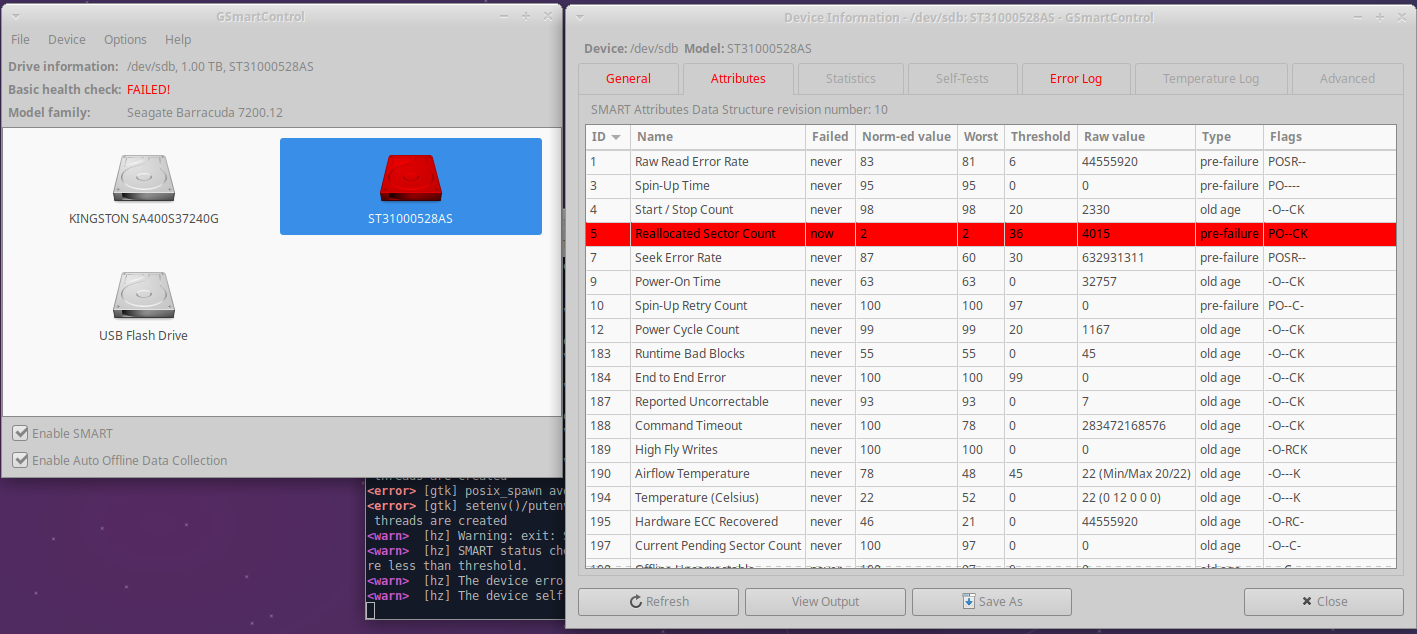
This drive isn't worth the risk. Fortunately, I stopped using it a while ago and have no important data on it. Before discarding or recycling a drive, always be sure to delete the data and partitions from the drive. Ideally you would also use a tool that writes junk data over the entire drive, like DBAN: www.dban.org We used this tool at work with great success.
Hope this helps you understand SMART drive data, and better manage the health of your hard drives.
Sources:
| # | By | Comment | Post Date | Likes |
|---|