
I know what you are thinking, he gave up after day 43. Well, right and wrong. I did give up after day 43, but not until day 82! It was a combination of getting sick, and getting so far behind on updating my spreadsheet that I lost interest.
Also, as I got into the spring, I started getting involved in tennis again and that consumes the majority of my time in the spring, summer and fall. So I kept up dog walks from day 44 (Feb 20, 2025) to day 82 (April 15, 2025). There is still a ways to go to get to the 365 and Teddy and I will pick this up again this fall. Maybe starting tomorrow night. 😀
Day: 44 2025-02-20 3.62km in 43:48
Day: 45 2025-03-01 1.11km in 14:52
Day: 46 2025-03-03 1.14km in 14:26
Day: 47 2025-03-05 1.19km in 13:01
Day: 48 2025-03-08 1.23km in 12:39
Day: 49 2025-03-09 1.46km in 18:27
Day: 50 2025-03-10 0.89km in 12:33
Day: 51 2025-03-11 1km in 13:08
Day: 52 2025-03-12 0.57km in 6:27
Day: 53 2025-03-13 1.39km in 16:45
Day: 54 2025-03-14 0.51km in 7:18
Day: 55 2025-03-15 1.12km in 11:15
Day: 56 2025-03-16 0.97km in 12:48
Day: 57 2025-03-17 2.07km in 24:20
Day: 58 2025-03-18 1.47km in 20:16
Day: 59 2025-03-19 0.61km in 9:08
Day: 60 2025-03-20 1.16km in 13:48
Day: 61 2025-03-21 1.09km in 13:07
Day: 62 2025-03-21 1.08km in 12:40
Day: 63 2025-03-23 0.88km in 11:00
Day: 64 2025-03-24 0.55km in 6:34
Day: 65 2025-03-25 0.5km in 7:43
Day: 66 2025-03-26 2.86km in 32:53
Day: 67 2025-03-27 1.52km in 19:22
Day: 68 2025-03-28 0.5km in 6:13
Day: 69 2025-03-29 0.95km in 11:22
Day: 70 2025-03-30 0.89km in 11:47
Day: 71 2025-03-31 0.53km in 8:04
Day: 72 2025-04-01 1.18km in 10:13
Day: 73 2025-04-02 0.87km in 10:18
Day: 74 2025-04-03 1.17km in 14:26
Day: 75 2025-04-04 0.51km in 5:50
Day: 76 2025-04-08 4.04km in 55:35
Day: 77 2025-04-09 0.5km in 4:38
Day: 78 2025-04-11 1.2km in 16:29
Day: 79 2025-04-12 1.29km in 16:03
Day: 80 2025-04-13 0.89km in 12:21
Day: 81 2025-04-14 0.52km in 6:33
Day: 82 2025-04-15 0.93km in 14:52
Lots of days in this update.
Day 29, .86km in 14 minutes and 26 seconds.
Day 30, 3.48km in 43 minutes and 55 seconds.
Day 31, 1.05km in 12 minutes and 32 seconds.
Just lazing around on our one month anniversary.

Day 32, 2.94km in 39 minutes and 7 seconds.
Day 33, 1.34km in 17 minutes and 15 seconds.
Day 34, 1.22km in 15 minutes and 37 seconds.
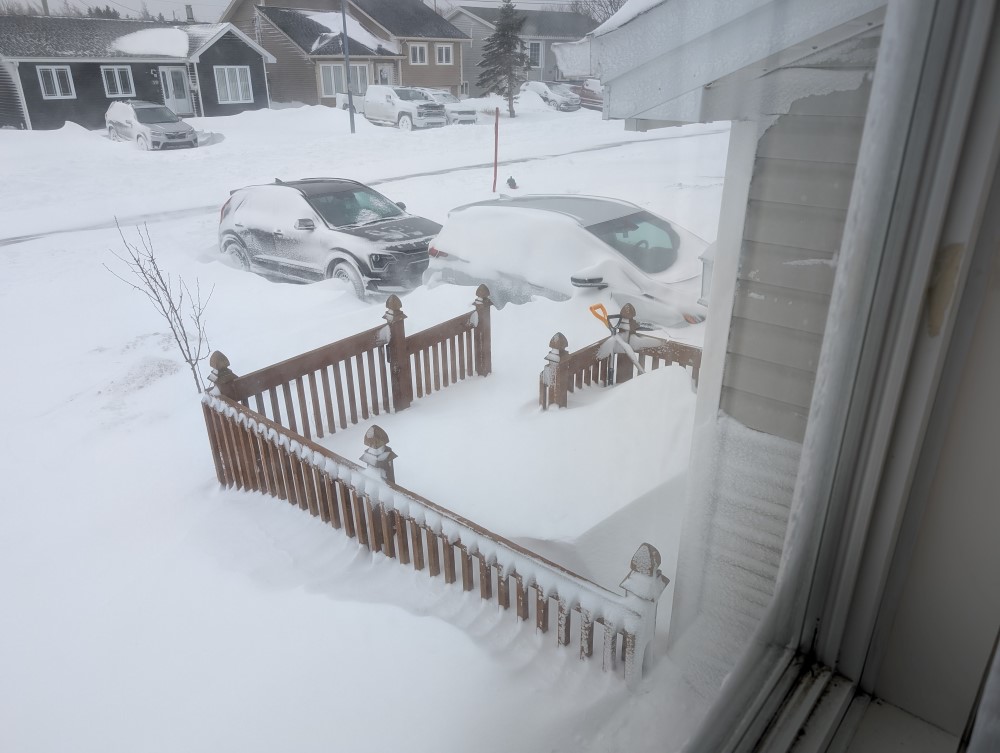
Bit stormy out. Had to do some shoveling to get out.
Day 35, 0.49km in 4 minutes and 13 seconds.
Day 36, 1.2km in 11 minutes and 40 seconds.
Day 37, 1.17km in 12 minutes and 38 seconds.
Day 38, 0.26km in 3 minutes and 56 seconds.
Stormy day:

Quick walk with Teddy in the wind:
Unrelated to the walking, but we drove out of town this night. While it was nice in town when we left, it got stormy again as we got close to our destination. Take a look at the driving conditions!
We weren't driving very fast, but we managed to get there. As Nana says, just keep the car between the ditches.
Day 39, 0.49km in around 7 minutes. Sara took the dog for a walk as I was out of town. I try to keep active too when traveling, and skiied 2.48km in 36 minutes and 19 seconds.
Day 40, 1.2km in 14 minutes and 1 second.
Day 41, 1.21km in 15 minutes and 49 seconds.
Because of all of the snow that has fallen, walking trails are largely inaccessible, so we are mostly walking on the roads. It will be nice in the spring when trails reopen as walking options.
Day 42, 1.22km in 13 minutes and 8 seconds.
Day 43, 0.76km in 12 minutes and 32 seconds.
Day 26 was a nice lunchtime walk with Teddy and Kristina. 1.34 km in 18 minutes and 32 seconds. It was very cold and windy though, -10 (not counting windchill), but it was sunny.
Day 27 was a very late walk, starting at 10:15 PM. Another short one. .52km in 8 minutes and 5 seconds.
Day 28 was also short, but I gave Teddy another shot in his booties. Kathryn came along as well.
0.38km in 7 minutes and 45 seconds. A bit farther, and a bit faster then his last bootie walk.
I really need to post more often....The girls haven't been walking with me lately, so just Teddy and I.
Winter has also finally come, so it is quite a bit colder now.
Day 13: 1.22 km in 13 minutes and 21 seconds.
Day 14: 1.34 km in 14 minutes and 7 seconds.

A bit of snow down, but you can still see the grass. Been quite windy lately.
Day 15: .45 km in 6 minutes and 33 seconds.
Day 16: .86 km in 9 minutes and 9 seconds.
Day 17: 1.09 km in 14 minutes and 14 seconds.
Day 18: .53 km in 8 minutes and 19 seconds.
Day 19: 1.51 km in 17 minutes and 24 seconds.
Day 20: 1.34 km in 15 minutes
Day 21: 1.5 km in 19 minutes and 25 seconds.
Day 22: 2.74 km in 36 minutes and 10 seconds.
Day 23: .88 km in 10 minutes and 45 seconds.
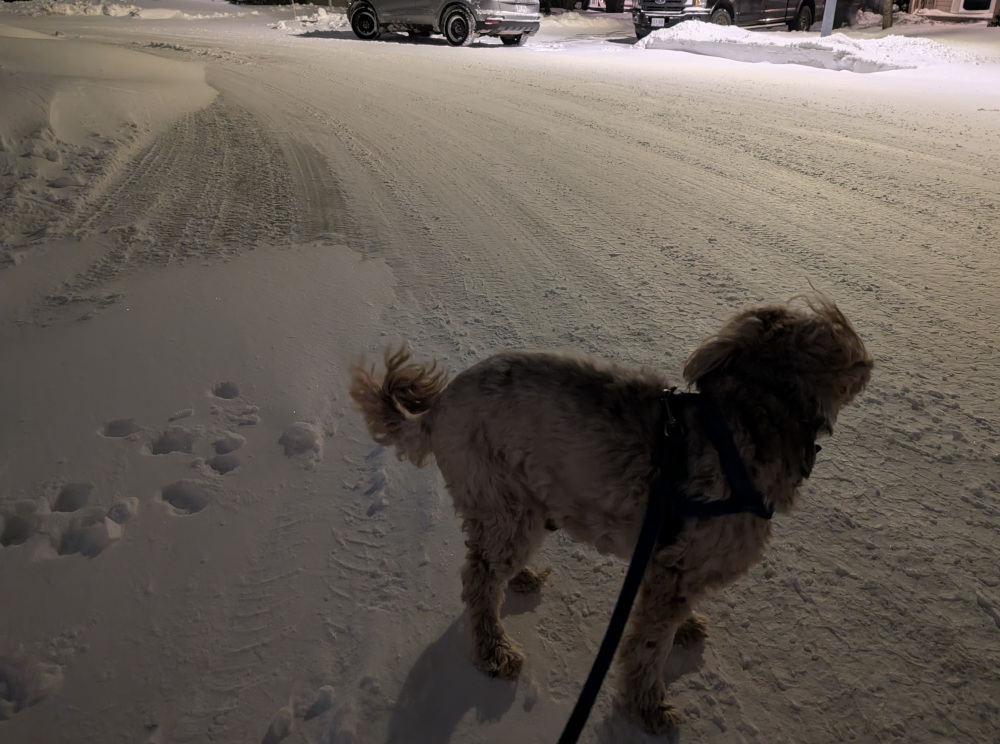
Another late night walk, with even more snow down. Sometimes we have to wait late in the day to avoid the worst of the wind. Other times I just run out of time and have to take him dispite the weather.
Day 24: 1.11 km in 15 minutes and 11 seconds.
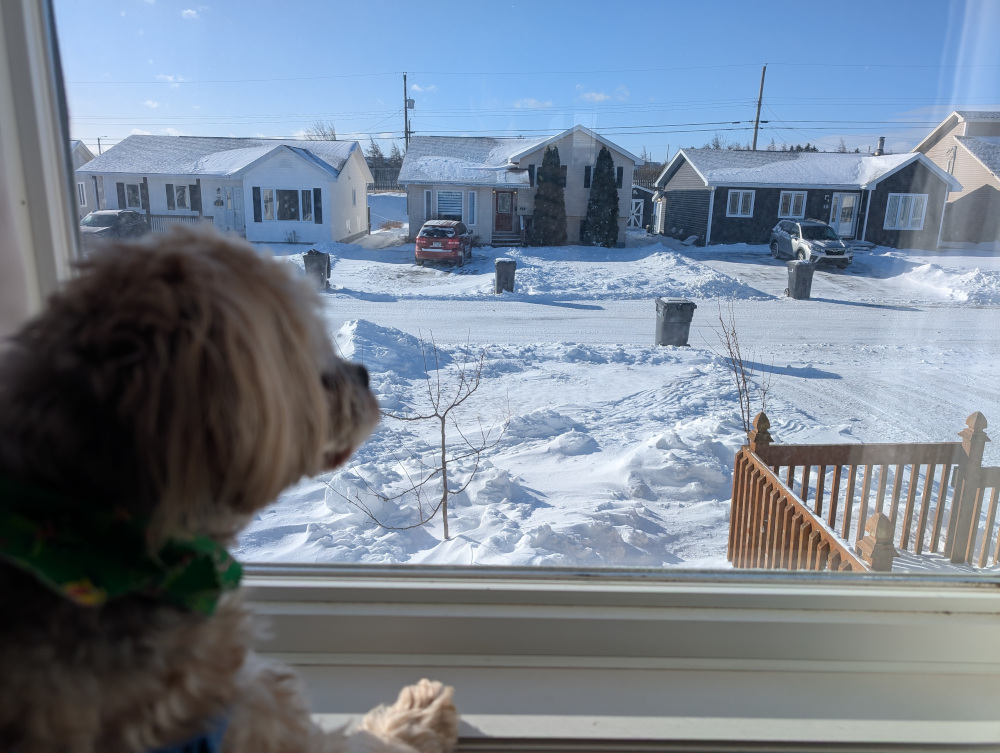
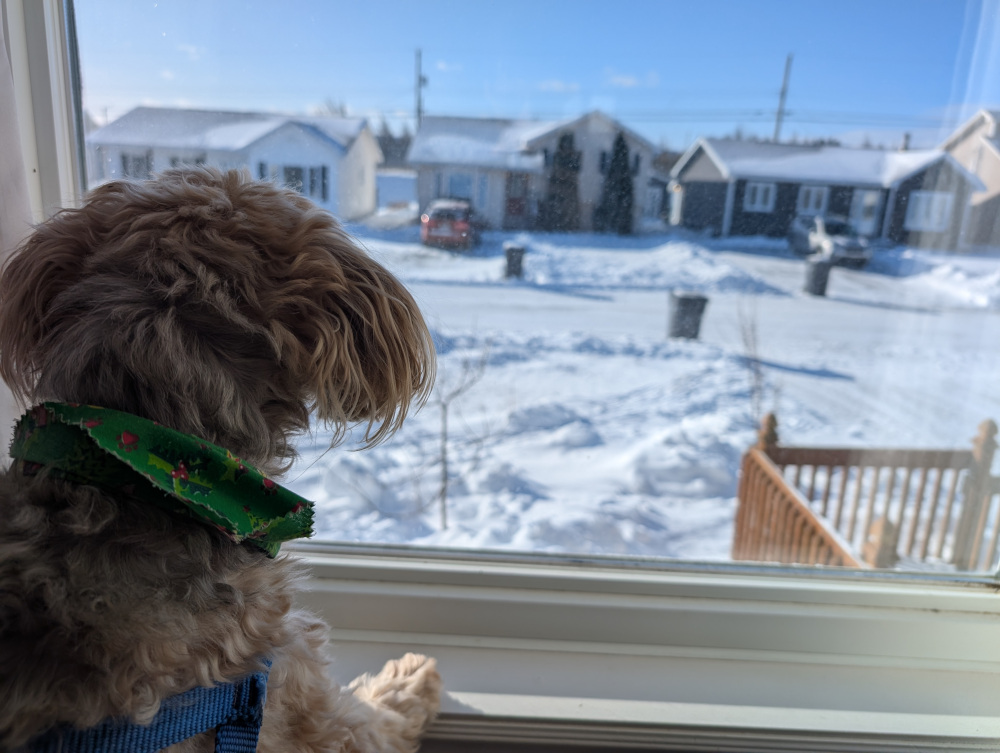
Teddy, longing for his walk. But again we went later in the evening to avoid this:
Day 25: 0.33 km in 8 minutes and 9 seconds. Over the last few weeks, I found that Teddy was often limping towards the end of our walks, or part way through. Many times I had to pick him up and carry him home. Thought it may have been his 15 year old back giving up on him, but realized it was the salt on his paws causing pain. So bought him some boots.
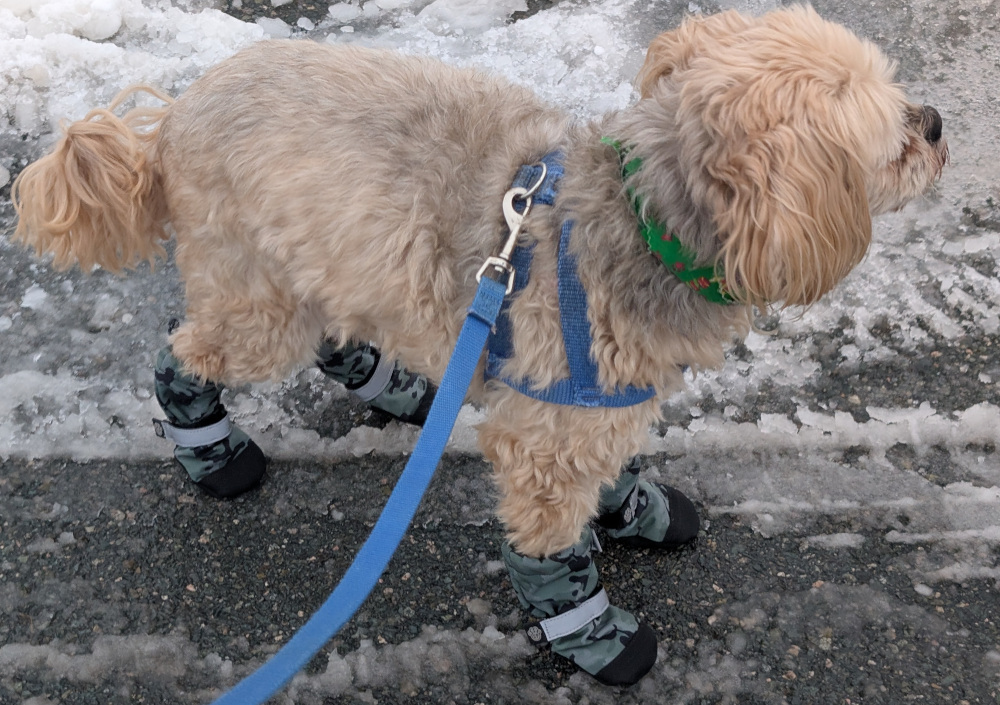
He hates his boots and is currently relearning how to walk. One boot fell off early in the walk, and by the end he was limping on that foot because of the salt. So I know that the booties are working.
He is also soooo slow to walk with his boots as he is relearning how to handle them.
Still walking, just not posting as regularly as I should.
Day 8 we went 1.49 km in 17:47.
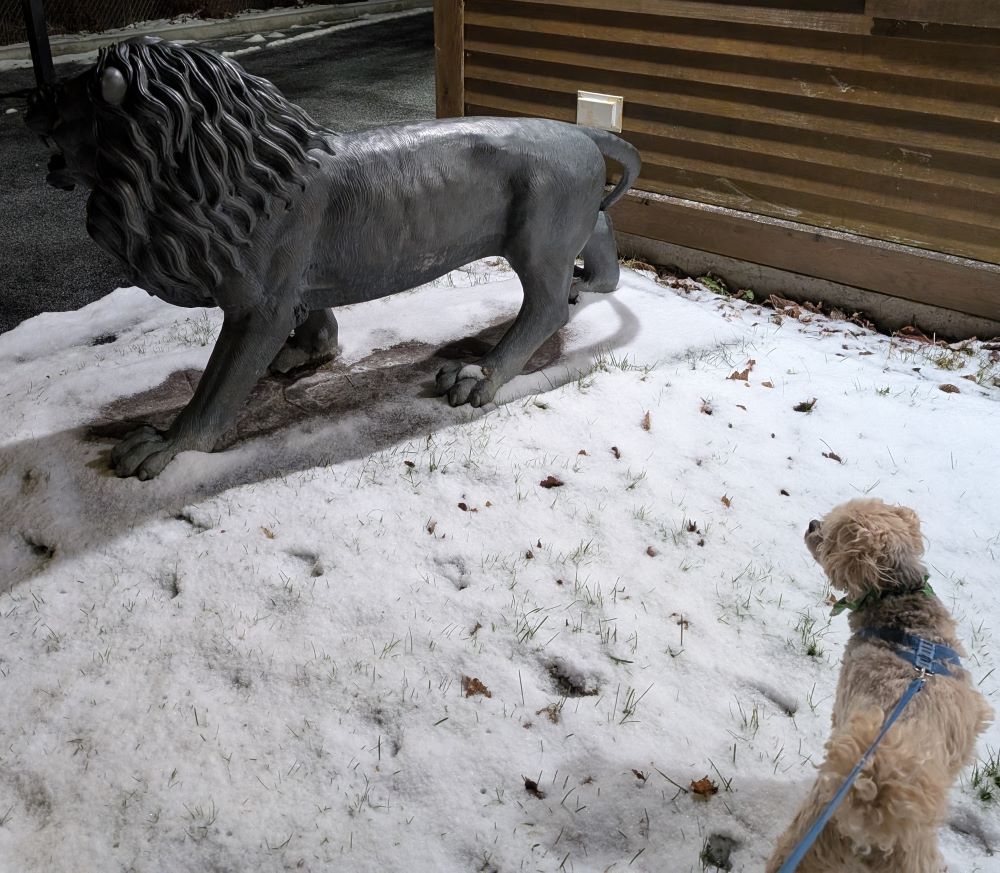
Day 9 we went 3.58 km in 44:38. This was our first walk outside of Mount Pearl. Dropped Kristina off at a practice, plugged in the EV at the mall, and went for a walk around a nearby neighborhood. Came across this guy, and Teddy didn't know what to make of it.
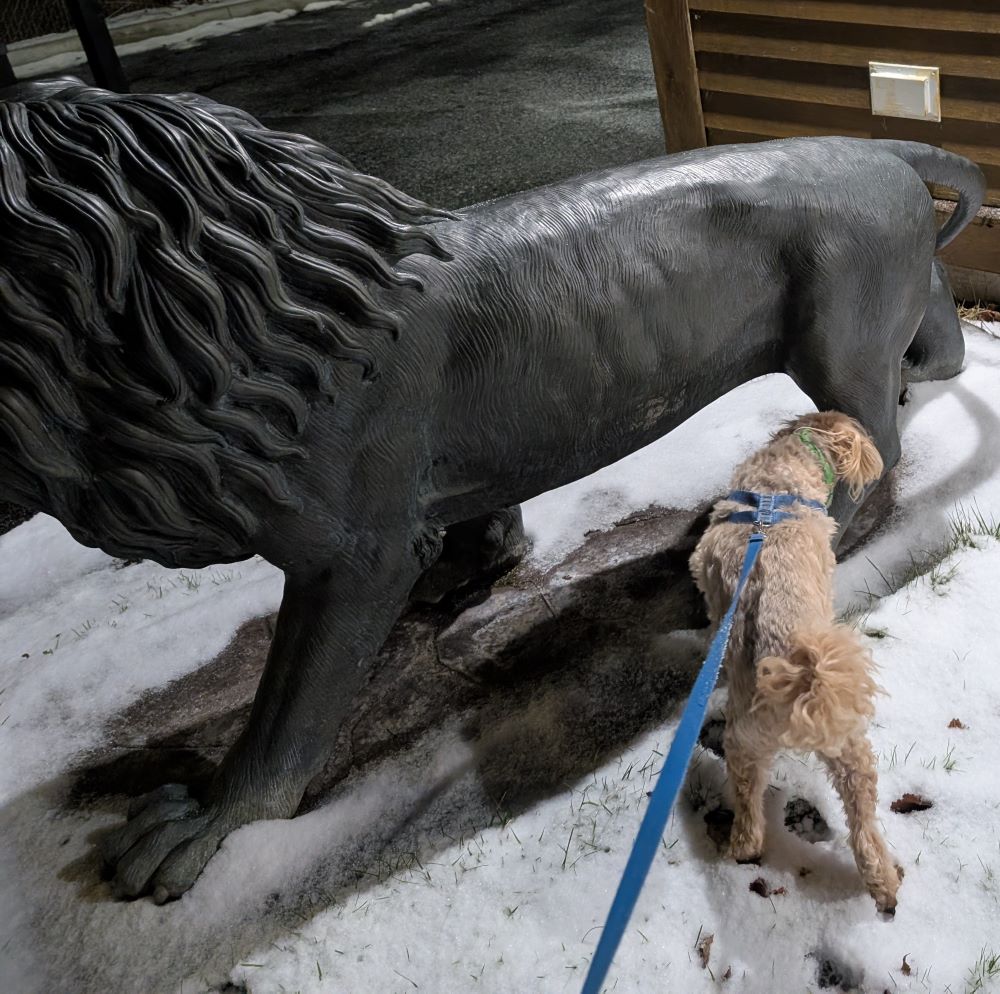
Day 10 was a quick nightime walk. 0.9km in 12:16.
Day 11 was a walk home from the tennis club. 2.91 km in 36:13.

Day 12 was another quick walk before curling. 0.93 km in 11:18.
I'm still doing the walks! Just getting lazy on the posting. 😉
On Day 6, I wasn't feeling well, so Kathryn and I did a quick shuffle around the "small" block. We walked .55km in 5 minutes and 19 seconds.
Day 7, was feeling a bit better, so Kristina and I went 1.76 km with Teddy, in 24 minutes and 25 seconds. No pictures or interesting stories to share this time.
No photo today, but Kristina joined me on the walk.
We walked 1.43km in 16 minutes and 55 seconds. It was -2 degrees out and overcast. Bit of snow on the ground that fell the night before.
One funny story: we were walking along and Teddy decides to raise his leg for a pee. Kristina walks right into it and almost gets peed on. However, being the 17th time Teddy raised his leg on the walk so far, nothing came out and she was safe. 😀
Another nice day for a walk!
Walked 2.87km this time, in 35 minutes and 49 seconds. Both girls came along and of course, Teddy (not pictured)!


It was a bit colder today, 0 with a bit of wind and light flurries.
No photos today. Took the dog for a walk in the evening in light rain/snow conditions. 1.43km in 18:29.
Kristina and Kathryn joined me on the walk.
Working from home today, so took Teddy on a short walk during my lunch break. Still no snow...on January 9th!
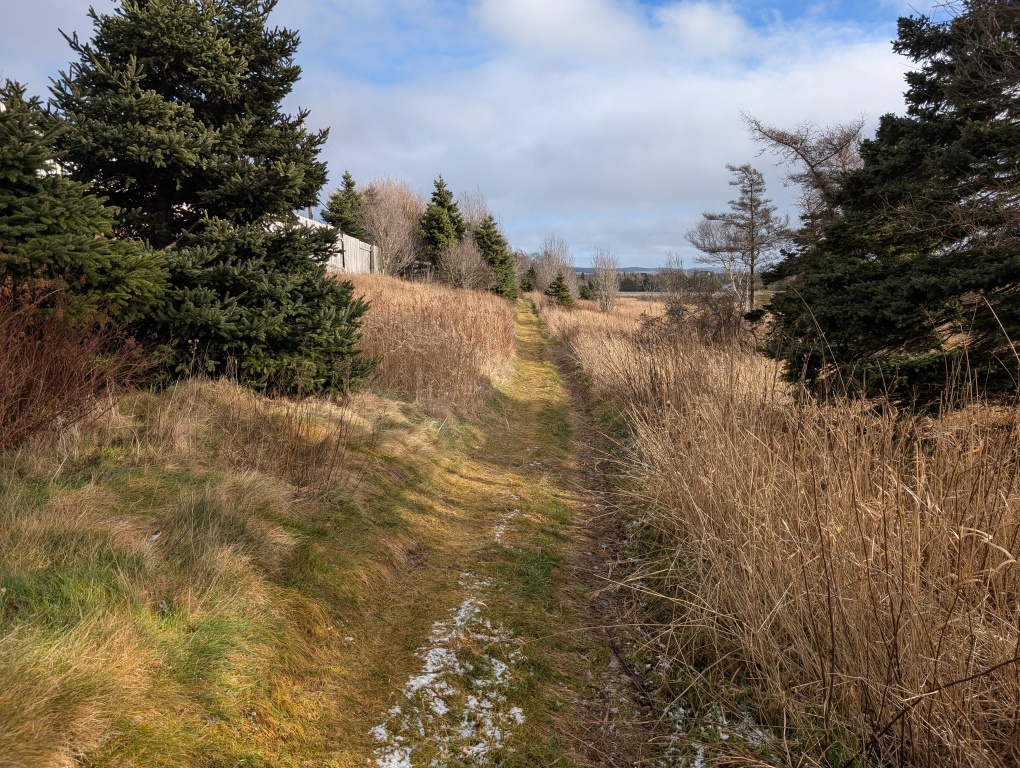
Walked 1.26km for 14 minutes and 19 seconds. It was sunny and 0 degrees Celsius.
Teddy seemed to enjoy himself.

Haven't made a post here in a long time but I recently decided to document 365 days of dog walks and needed a place to do that. :) So here we are.
Take our dog Teddy for a walk every day (or if I'm away from Teddy traveling, I'll just take a walk every day). Each day will be followed up with a summary of the walk (duration, distance, etc...) from my fitness tracker, along with a photo or video when something interesting happens. The plan is to walk rain (or snow) or shine, most likely in the morning before work. But maybe in the evening if I forget, or during my lunch break when I'm working from home.
My daughters (Kristina and Kathryn) decided to join me on day 1.

And because Teddy wouldn't settle for the outside photo an indoor photo:

We walked 1.2 km in 15 minutes and 40 seconds. This was around the "big block" near our house.
I've been looking for a new (free) markdown editor to replace Typora now that it is no longer free, and I decided to try out Notepad++ as it is a piece of software I use fairly regularly. This post will document the setup and use, and some pros and cons of using Notepad++ as a markdown editor.
Note: Of course you can use Notepad++ out of the box as a markdown editor, since markdown is just plain text, but these configuration tweaks and plugin additions make it a bit easier to work with.
First, get Notepad++ from: https://notepad-plus-plus.org/downloads/
Once installed, you will need to MarkdownViewer++ Plugin.
Notepad++, by default, doesn't do syntax highlighting for markdown, but it has a user defined language option where you can specify your own, and fortunately someone has already done that! The UDL files have been created and made available here: https://github.com/Edditoria/markdown-plus-plus This page contains all the information on the files, and installation methods. I did a manual install, which I'll highlight below:
<udl\> folder.<userDefineLangs\> folder of Notepad++.
My final tweak was to enable the Folder as Workspace feature and point it at my Markdown Notes directory. This allows me to easily pop around my notes folders and see/edit files.
To enable viewing of the rendered markdown, click the M {downarrow} button that appears in the menu bar. You can see the final configured interface below.
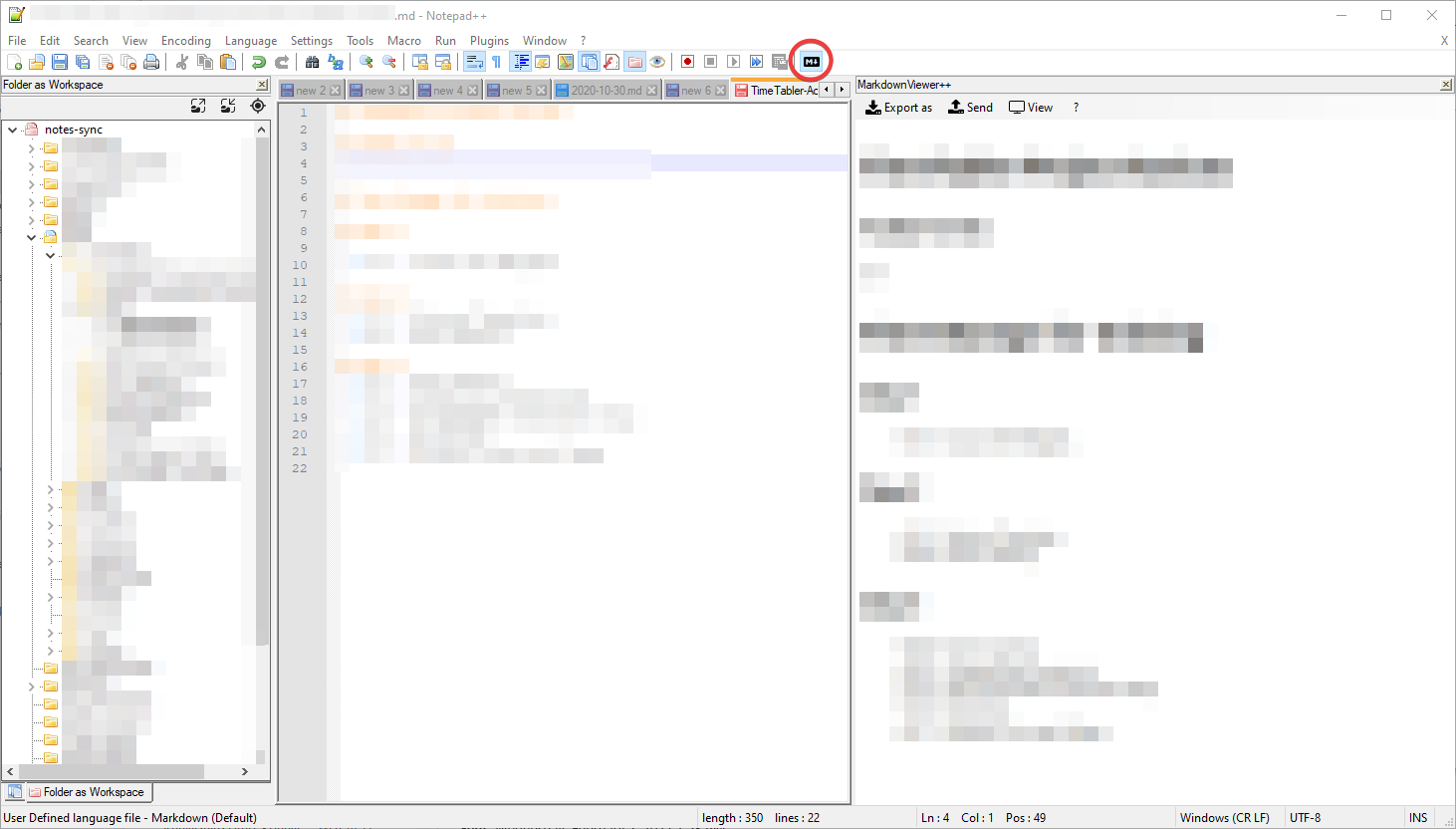
Pros
If you use Notepad++ regularly, then you know it is a very powerful application with oddles of functionality. If you work with a bit of markdown, then having more markdown functionality within Notepad++ saves you time switching from program to program.
Notepad++ is fast, and a really light weight application.
The MarkdownViewer++ plugin allows you to copy/paste or export/save formatted content into HTML or PDF formats for easy sharing of formatted work.
Cons
In the Folder as Workspace feature, you cannot create folders or files.
The MarkdownViewer++ plugin does not appear to provide a live preview.
The MarkdownViewer++ plugin Synchronize Scrolling feature does not appear work.
Workarounds
To create files and folders you can do the following:
To refresh your preview of the document, click the M {downarrow} button.
I was trying to install a Linux application that was packaged via snap. For some reason, my virtual machine could not access the api.snapcraft.io, but it could access the internet in general. After waiting a day to see if the situation would resolve itself, I eventually discovered that api.snapcraft.io was blocked at the firewall level (for some reason). So without access to that site, you cannot use the command line commands to install a snap:
sudo snap install freeorionSo, I downloaded the snap from another computer, transferred it to the VM, and then installed it using the following commands:
$ snap download freeorion
Fetching snap "freeorion"
Fetching assertions for "freeorion"
Install the snap with:
   snap ack freeorion_231.assert
   snap install freeorion_231.snap
--- Transfer snap to the other computer ---
$ sudo snap ack freeorion_231.assert
[sudo] password for thomas:
$ sudo snap install freeorion_231.snap
freeorion v0.4.10.2 from A333 (agrrr3) installed
You can use a process like this to install any snap package on an offline computer with snap support.
Hope this helps someone.
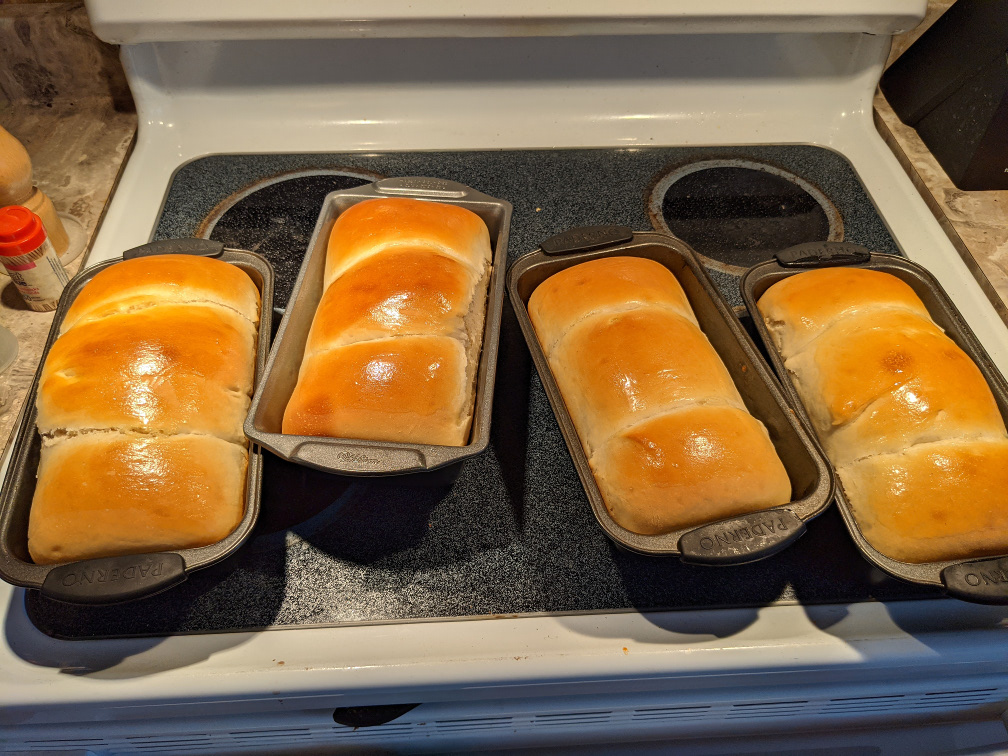
Happy Valentine's Day! Turns out everyone's plan for this day was ruined! In the morning I did my morning workout and spent some time cleaning up the back room a little. When I have nothing to do (or don't want to do something) I tend to reorganize things. :) Throughout the day, I baked some bread as well.
At noon we had our COVID-19 tests. Took about three hours, but the test itself was about 2 minutes long from the explanation to what is happening, to the actual swab.
Back to work! Monday was a pretty regular work from home day. But, in the afternoon we took some time and had our winter cookup! Roasted hotdogs around the fire, with some marshmellows for desert. Then inside for the second part of the meal, salad and oven baked buffalo cauliflower.
Pretty much a normal day at work, except for the negative covid-19 test result! Both Sara and I tested negative which is a relief. Although I still have to finish a 2 week isolation period anyway as I was in contact with a positive case. So the family is still isolating until Sunday.
These were pretty much normal days. Can't really go outside, so not much to do. Girls are participating in online school, Sara and I are working from home. Sara did go into work today (Feb. 18th) to finish up her tenure at the university. She received a special exemption to leave our isolation to attend to some matters at the office, but had to come straight home afterwards.
Working from home consumes most of our days, but planning to take Monday and Tuesday off next week to get out of the house and take in some snowshoeing! This weekend, will probably take care of some things around the house.


The province of Newfoundland and Labrador (NL) has fared very well during the current COVID-19 pandemic. We had seen very low case counts (~.63 per thousand people) up to the week of February 8th, 2021. This is largely due to the fact that Newfoundland is an island province, and Labrador is very isolated and sparsely populated. Additionally, NL has had pretty strict travel restrictions for most of the pandemic, forcing people into a 14 day quarantine when they arrived in the province (with the exception of the short lived "Atlantic Bubble"). There was also a province wide lockdown that lasted months after the first cluster of cases were discovered in NL, which nearly wiped out the virus in the province. Restrictions start lifting in the spring of 2020.
For the next 6 months or so, cases were limited to travelers returning home, or rotational workers coming home from work. But, for the most part, they were playing by the rules and isolating, and any new cases were caught pretty quickly and outbreaks were halted before they could get out of hand. Then came February 8th, and the announcement of 11 new cases. These cases linked to students and schools, and a weekend of school sports. February 9th: 30 new cases, Feb 10th: 53 new cases, Feb 11th: 100 new cases. Over 4 days, NL had 194 new cases, over half as many as all of the cases as the previous 330 days combined. Then, Feb. 12th, the worst news of all, the new UK variant of the virus is the strain that has been spreading around NL. The province held a second COVID-19 briefing that day (a first for the pandemic) to announce the news, and the return to Alert Level 5 (which is essentially a province wide lockdown).
On February 12th I also received news that I was in the same location of someone who tested positive. I've reached out to schedule my test, and am waiting for a call from public health. Although currently experiencing no symptoms, I have to self-isolate for two weeks from the potential exposure, so the family is trapped on the property until February 22nd. We decided to all isolate for a few reasons:
Well, I thought I'd catalog a few of the activities we are doing while in isolation and while in another province wide lockdown, since I now have lots of spare time from all the activities that were cancelled. I'll probably post every few days, summarizing what has been happening, with photos if that helps add to the story.
Since the lockdown was announced at 8:30 pm, I'll call Feb. 12th, day 0 instead of day 1. This is also the day we were all warned to isolate anyway. I did have some snowshoes purchased for the girls, but was no longer allowed to go out and pick them up. Nana to the rescue! She grabbed the snowshoes, and they work great for the girls. Now just have to get pairs for Sara and I.
Being advised to stay home, and not being allowed off the property are very different. During the first lockdown I would go for walks, or go to the grocery store to get out of the house and get supplies as required. But now, since the whole family isn't allowed to leave, we have to do things around the house.
So, in the morning we gutted out the family room, and cleaned up. Threw away a bag of garbage and had a bag of recycling. Now everything is in great shape.
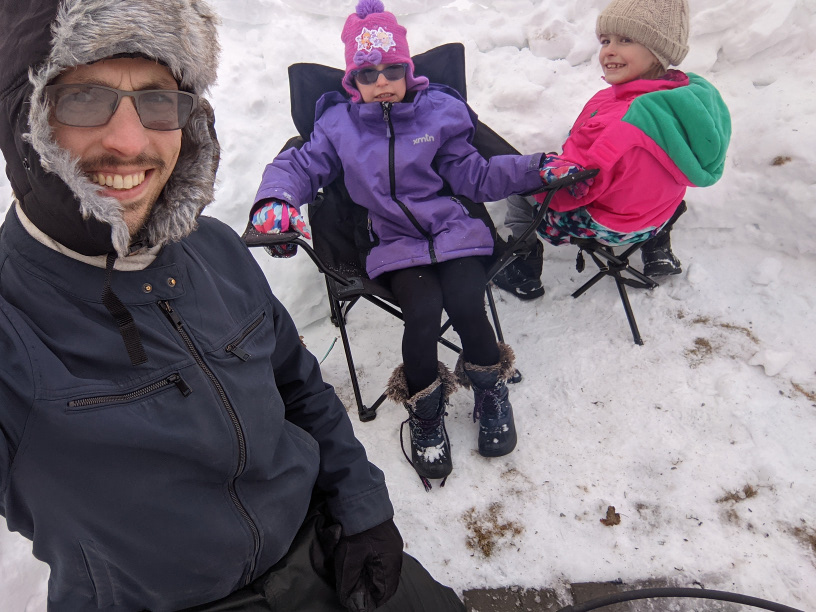
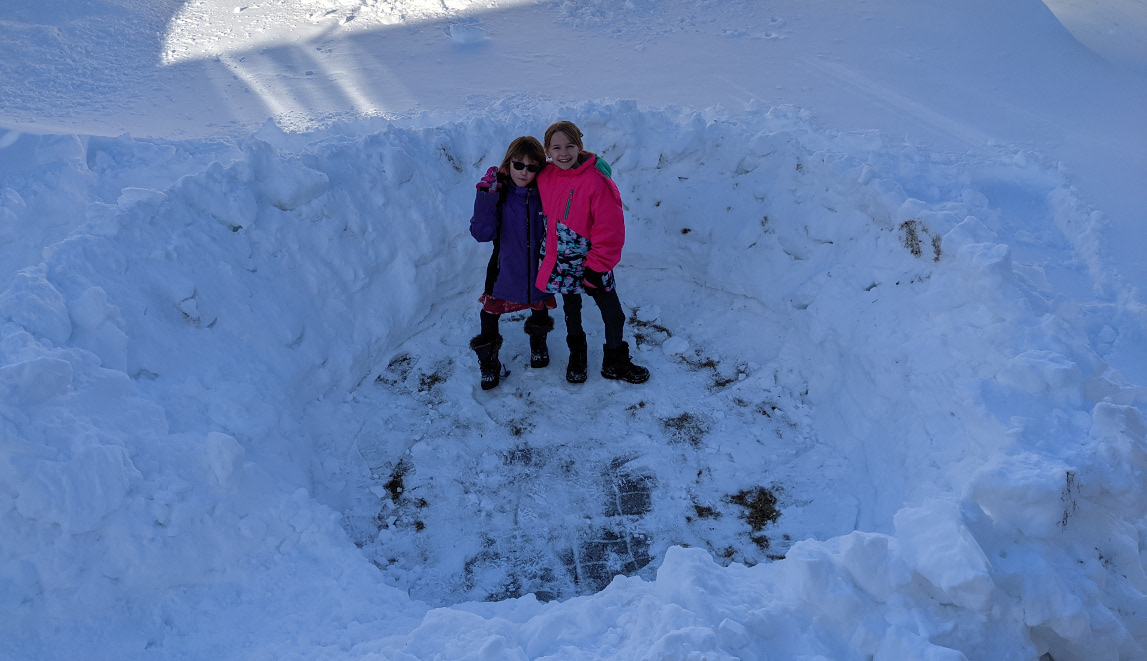
In the early afternoon, shovelled out the driveway, and cleared out a spot in the backyard to have a winter fire. Got the idea from an episode of Back in Time for Winter on CBC. The fire will be one evening later this week.
In the mid-afternoon, arranged some online games with girls and my sister and mother from Halifax. Played a few rounds of Guesspionage and Quiplash 2 from the Jackbox Series. This went really well, and we will probably make it a weekly activity.
Late afternoon, wrote this post. :)
So that is it for now, stayed tuned for more in the coming weeks.
Sources:
Every year around this time, I take the time to clean out my office, clean up my computer, and go through the old gear I have to see if it is still any good.
Well, this year is the year of the hard drive. I have a pile of old drives lying around, and I'm checking to see if they are still good so that I can either use them, or recycle them. For those who haven't worked with hard drives much, it can be very confusing. Sometimes you cannot access a drive, or its data, but it isn't because of a hardware failure. Other times you can access data just fine, but the drive might be hours away from failure. Most hard drives keep track of some diagnostic data and regularly run self-tests to tell you the status of the drive. This is called S.M.A.R.T. (Self-Monitoring, Analysis and Reporting Technology; often written as SMART). Operating systems tend not to present this information in an easy to view way, as it is very technical. But SMART also provides a one word status that often operating systems do report. It basically can be summed up as good or bad. Depending on your OS, you may see that reported in your disk manager if you have a failing drive.
If you want to dig into it a bit more, then you need to access the SMART information directly. You can do this in Windows, Linux, or MacOS with specialized software tools. You can see a selection of tools here: https://en.wikipedia.org/wiki/Comparison_of_S.M.A.R.T._tools I tried out CrystalDiskInfo in Windows and smartmontools in Ubuntu. CrystalDiskInfo told me that one of my drives had failed, and the other was failing. One was the drive I was testing, so no surprise there, but the other was the drive in my system that I use daily. I had no indication of any problems on either drive, so I was a bit skeptical of the results. Running the built in Windows tool to get drive statuses, reported all 3 drives being ok (the one word smart answer, either good or bad). So clearly CrystalDiskInfo was using some other data from SMART to put together a status of good, caution, or bad. CrystalDiskInfo provides all of the raw SMART data, and I consulted this Wikipedia page for the which measures to look out for: https://en.wikipedia.org/wiki/S.M.A.R.T.#ATA_S.M.A.R.T._attributes but I still was confused as my failing drive appeared to be showing more bad sectors than my failed drive. This is when I resorted to my trusty Linux to get to the truth of the matter.
I rebooted into my USB drive version of Ubuntu 20.04 and installed smartmontools: sudo apt-get install smartmontools and then ran: sudo smartctl -a /dev/sdb to get the output of the SMART data for the drive (replace sdb with whatever identifier your system gives to the drive in question). You can also find this data with gparted or sudo fdisk -l. Here is some sample output from fdisk -l.
Disk /dev/sdb: 596.18 GiB, 640135028736 bytes, 1250263728 sectors
Disk model: WDC WD6400AAKS-7
Units: sectors of 1 * 512 = 512 bytes
Sector size (logical/physical): 512 bytes / 512 bytes
I/O size (minimum/optimal): 512 bytes / 512 bytes
Disklabel type: dos
Disk identifier: 0xa36b7aee

Device     Boot     Start        End   Sectors   Size Id Type
/dev/sdb1            2048  616771583 616769536 294.1G  7 HPFS/NTFS/exFAT
/dev/sdb3       616771584 1250263039 633491456 302.1G  7 HPFS/NTFS/exFAT
Here is the output of smartctl -a on this drive:
xubuntu@xubuntu:~$ sudo smartctl -a /dev/sdb
smartctl 7.1 2019-12-30 r5022 [x86_64-linux-5.4.0-26-generic] (local build)
Copyright (C) 2002-19, Bruce Allen, Christian Franke, www.smartmontools.org

=== START OF INFORMATION SECTION ===
Model Family:     Western Digital Caviar Blue (SATA)
Device Model:     WDC WD6400AAKS-75A7B2
Serial Number:    WD-WMASY5958788
LU WWN Device Id: 5 0014ee 0565caee5
Firmware Version: 01.03B01
User Capacity:    640,135,028,736 bytes [640 GB]
Sector Size:      512 bytes logical/physical
Device is:        In smartctl database [for details use: -P show]
ATA Version is:   ATA8-ACS (minor revision not indicated)
SATA Version is:  SATA 2.5, 3.0 Gb/s
Local Time is:    Sat Dec 26 12:41:12 2020 UTC
SMART support is: Available - device has SMART capability.
SMART support is: Enabled

=== START OF READ SMART DATA SECTION ===
SMART overall-health self-assessment test result: PASSED

General SMART Values:
Offline data collection status:  (0x84)	Offline data collection activity
					was suspended by an interrupting command from host.
					Auto Offline Data Collection: Enabled.
Self-test execution status:      (   0)	The previous self-test routine completed
					without error or no self-test has ever
					been run.
Total time to complete Offline
data collection: 		(12000) seconds.
Offline data collection
capabilities: 			 (0x7b) SMART execute Offline immediate.
					Auto Offline data collection on/off support.
					Suspend Offline collection upon new
					command.
					Offline surface scan supported.
					Self-test supported.
					Conveyance Self-test supported.
					Selective Self-test supported.
SMART capabilities:            (0x0003)	Saves SMART data before entering
					power-saving mode.
					Supports SMART auto save timer.
Error logging capability:        (0x01)	Error logging supported.
					General Purpose Logging supported.
Short self-test routine
recommended polling time: 	 (   2) minutes.
Extended self-test routine
recommended polling time: 	 ( 140) minutes.
Conveyance self-test routine
recommended polling time: 	 (   5) minutes.
SCT capabilities: 	       (0x303f)	SCT Status supported.
					SCT Error Recovery Control supported.
					SCT Feature Control supported.
					SCT Data Table supported.

~~~~
SMART Attributes Data Structure revision number: 16
Vendor Specific SMART Attributes with Thresholds:
ID# ATTRIBUTE_NAME          FLAG     VALUE WORST THRESH TYPE      UPDATED  WHEN_FAILED RAW_VALUE
  1 Raw_Read_Error_Rate     0x002f   199   196   051    Pre-fail  Always       -       11453
  3 Spin_Up_Time            0x0027   162   161   021    Pre-fail  Always       -       4866
  4 Start_Stop_Count        0x0032   096   096   000    Old_age   Always       -       4852
  5 Reallocated_Sector_Ct   0x0033   199   199   140    Pre-fail  Always       -       1
  7 Seek_Error_Rate         0x002e   200   200   000    Old_age   Always       -       0
  9 Power_On_Hours          0x0032   068   068   000    Old_age   Always       -       23735
 10 Spin_Retry_Count        0x0032   100   100   000    Old_age   Always       -       0
 11 Calibration_Retry_Count 0x0032   100   100   000    Old_age   Always       -       0
 12 Power_Cycle_Count       0x0032   100   100   000    Old_age   Always       -       688
192 Power-Off_Retract_Count 0x0032   200   200   000    Old_age   Always       -       25
193 Load_Cycle_Count        0x0032   199   199   000    Old_age   Always       -       4844
194 Temperature_Celsius     0x0022   117   102   000    Old_age   Always       -       30
196 Reallocated_Event_Count 0x0032   199   199   000    Old_age   Always       -       1
197 Current_Pending_Sector  0x0032   186   186   000    Old_age   Always       -       1464
198 Offline_Uncorrectable   0x0030   190   186   000    Old_age   Offline      -       1134
199 UDMA_CRC_Error_Count    0x0032   200   200   000    Old_age   Always       -       0
200 Multi_Zone_Error_Rate   0x0008   001   001   000    Old_age   Offline      -       35753
240 Head_Flying_Hours       0x0032   069   069   000    Old_age   Always       -       23132
241 Total_LBAs_Written      0x0032   200   200   000    Old_age   Always       -       9020105666
242 Total_LBAs_Read         0x0032   200   200   000    Old_age   Always       -       6208190061
~~~~

SMART Error Log Version: 1
No Errors Logged

SMART Self-test log structure revision number 1
Num  Test_Description    Status                  Remaining  LifeTime(hours)  LBA_of_first_error
# 1  Short offline       Completed without error       00%         9         -
# 2  Short offline       Completed without error       00%         0         -

SMART Selective self-test log data structure revision number 1
 SPAN  MIN_LBA  MAX_LBA  CURRENT_TEST_STATUS
    1        0        0  Not_testing
    2        0        0  Not_testing
    3        0        0  Not_testing
    4        0        0  Not_testing
    5        0        0  Not_testing
Selective self-test flags (0x0):
  After scanning selected spans, do NOT read-scan remainder of disk.
If Selective self-test is pending on power-up, resume after 0 minute delay.
The data between the ~~~~ is important SMART information. This is what also appears in CrystalDiskInfo. But interpreting that is a challenge. What I have discovered is that the important data is in VALUE, which contains the normalized data for that particular attribute. You can find a list of attributes below. The values are generally normalized to either a value of 200 or 100, and get worse as they approach 0. So a value of 199 above for Reallocated_Sector_Ct doesn't mean 199 bad sectors, it means the drive health is one point off of being perfect (200). In this case, the RAW_VALUE tells us that there is 1 reallocated sector, and the THRESH (Threshold value for failure) for this drive is 140. Once the normalized value drops from 199 to 140, the drive will consider itself as failed. Having a few bad sectors isn't the end of the world, but as these numbers increase, the drive is "getting worse" and moving towards failure. So keeping an eye on the SMART data for your drive is a good idea. Many of the other RAW_VALUE numbers cannot be interpreted at face value, as it could be reads, seconds, minutes, or some other internal measure of the drive defined by the manufacturer, and they also cannot easily be compared between different drives of different makes or models as they may have defined the values differently. However, you should be able to compare the VALUE and WORST between the drives, as these are the normalized values.
You can also use smartctl to perform tests on the drive. If possible, you should always back up a suspected bad drive before running tests as it could put additional strain on a drive and cause a failure. (of course, you should always have your important data backed up anyway)
You can run:
In this case, I'm going to run a short test on each drive to see the updated status:
$ sudo smartctl -t short /dev/sdb
smartctl 7.1 2019-12-30 r5022 [x86_64-linux-5.4.0-26-generic] (local build)
Copyright (C) 2002-19, Bruce Allen, Christian Franke, www.smartmontools.org

=== START OF OFFLINE IMMEDIATE AND SELF-TEST SECTION ===
Sending command: "Execute SMART Short self-test routine immediately in off-line mode".
Drive command "Execute SMART Short self-test routine immediately in off-line mode" successful.
Testing has begun.
Please wait 2 minutes for test to complete.
Test will complete after Sat Dec 26 13:44:21 2020 UTC
Use smartctl -X to abort test.
Once the test is complete, you can run the same command as before to see all of the update SMART info, or you can run a specific command to get just the test results:
$ sudo smartctl -l selftest /dev/sdb


smartctl 7.1 2019-12-30 r5022 [x86_64-linux-5.4.0-26-generic] (local build)
Copyright (C) 2002-19, Bruce Allen, Christian Franke, www.smartmontools.org

=== START OF READ SMART DATA SECTION ===
SMART Self-test log structure revision number 1
Num  Test_Description    Status                  Remaining  LifeTime(hours)  LBA_of_first_error
# 1  Short offline       Completed: read failure       90%     23736         502214012
# 2  Short offline       Completed without error       00%         9         -
# 3  Short offline       Completed without error       00%         0         -
GSmartControl for Linux (and a pile of other systems) also provides a great overview of the SMART data, and the interpretation of the values reported. I was able to install this with: sudo apt-get install gsmartcontrol
So, looking at these errors on my main drive, it looks like it might be a good idea to consider replacement, but most of the tools are reporting that despite the errors, the drive is still "good". What I'm going to do is test out this drive regularly, and watch the values to see when they change. It is possible to set up automatic logging and reporting tools to get status updates. I'll probably cover that in a future blog post. (What I haven't noted so far is that I also have an SSD in the computer as well, and it is reporting everything working correctly.)
I'm going to move on to testing some of the other suspect drives to see how they are fairing.
Here is a screenshot from GSmartControl of the 1TB drive I was testing:
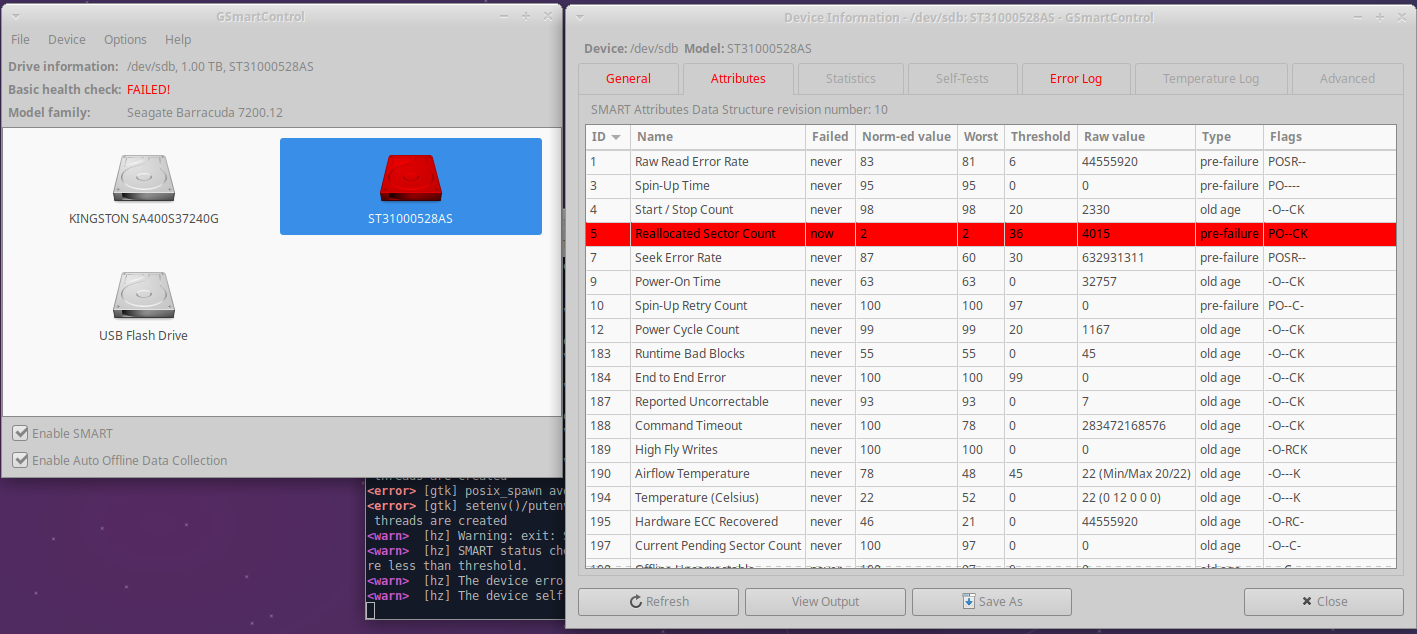
This drive isn't worth the risk. Fortunately, I stopped using it a while ago and have no important data on it. Before discarding or recycling a drive, always be sure to delete the data and partitions from the drive. Ideally you would also use a tool that writes junk data over the entire drive, like DBAN: www.dban.org We used this tool at work with great success.
Hope this helps you understand SMART drive data, and better manage the health of your hard drives.
Sources:
I updated my file and instructions to include registering the OCX files for network play, and post game stats. I also converted the .hlp file to a HTML file and RTF file for your reference. I updated the instructions and download file on the Fracas page linked below.
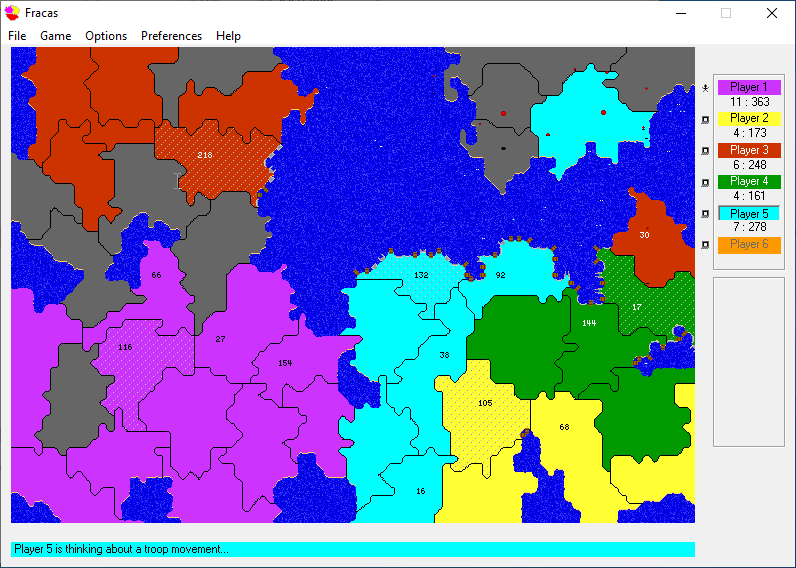
I was recently surfing the internet archive and Geocities pages for nostalgia purposes, and shared some of my findings with a friend. He mentioned an old game we used to play called Fracas. It is a Risk-like game, but instead of being based on dice rolls, winning or losing a battle is solely based on the number of troops available for attacking and defending.
There are special rules about joint border defense, defense along the sea, and most of the rules can be tweaked in the setup of the game. There is even a map editor included so you can make your own custom maps. Anyway, the game was last published on 2002, and the webserver that hosted it is no longer online. Using the internet archive, I was able to find a point in time when the server was still available, and download a copy of the game. I wasn't able to get it to install on Windows 10, but I was able to fire up Linux and install it using Wine. Now that I had all of the files, and a working copy, I was able to take those and develop a procedure to play on Windows 10. You can find all of the details on this page.
Below is a screenshot. If this is a game you remember playing, feel free to leave a comment below. Hopefully folks can continue to enjoy this game.
I recently tried to set up RStudio on Windows. At work, we have network mapped Documents drives, so it is impossible to save files locally on the computer, and instead everything is mounted/redirected from network shares. This causes a problem in RStudio due to known bugs with UNC paths. The errors will look something like this:
Warning message:
In normalizePath(path.expand(path), winslash, mustWork) :
path[1]="//server/dirs$/username/R/win-library/4.0": Access is denied
It should be fixed in version 1.4 (1.2 is the latest at the time of writing this post). The fact that it will be fixed in the future doesn't help me much, so I did some research and found out that if you change your library path on startup to a drive letter mapping instead of a server mapping, things work better. You can load files from the network drives, and also install packages into your Documents directory.
If you type .libPaths("P:/R/win-library/3.3") and execute [adjusted for your drive mappings and folder locations], you will be able to install packages successfully. Take note that the slashes are reversed. You can make this run at the top of each of your scripts, or add it to your .Rprofile file. The .Rprofile file resides in your Documents directory, and is a hidden file. So you will need to turn on being able to view hidden files in order to see it. If it doesn't exist, you can create it (See this link for creating hidden . (dot) files: https://stackoverflow.com/a/38425947 )
Once I made these changes, I was able to install packages and load files.
I did continue to have problems saving files, and had to use a slightly different procedure for saving files. By default, it will load your home directory, which (in my case) is mapped to a network drive, but using the \\servername\folder syntax. This causes problems, so I need to drop down to the network drive (P: in my case) and browse to the same folder through that path. Then it allows the saving of the file. If your home folder isn't mapped as a drive letter, you can do that yourself by using a command like this: net use x: \\localhost\c$\Folder\Example
Hope this helps someone.
Sources:
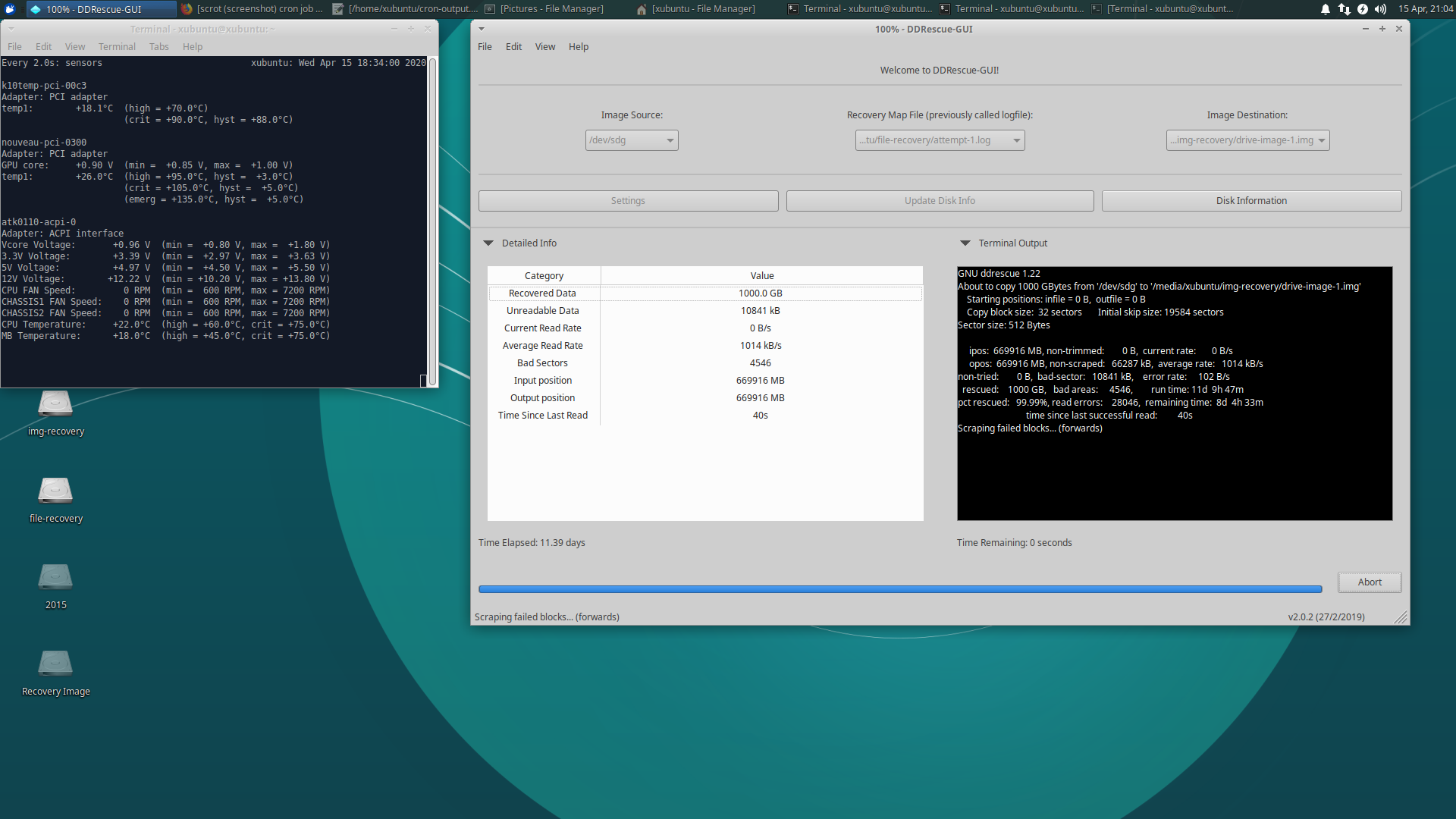
My mother sent along a hard drive that was failing. So, my task was to try and recover it. I booted up the drive in my spare computer, with a new drive to collect the data. I ran DDRescue-GUI to start the recovery. And what do you know, estimated time to recovery, 11.5 days. I didn't want to log in and check on things, or have to go back into the basement, so I wrote a script to take a screenshot and upload it to my server on a schedule. It uses the scrot command, as well as bash to do the heavy lifting. There isn't much to it, but I'd thought I'd share in case anyone finds it useful:
#!/bin/sh
scrot -q 75 /home/xubuntu/Pictures/progress.png
sleep 5
scp -P1234 /home/xubuntu/Pictures/progress.png username@servername:/path/to/web/folder/progress.png
And the crontab entry to run the script:
04,34 * * * * xubuntu DISPLAY=:0 /home/xubuntu/upload-progress.sh >> /home/xubuntu/cron-output.txt 2>&1
For fun, you can look at the last screenshot of the progress (until I clean up my server):
I just recently installed a Windows 10 update, and after my reboot, I was faced with the lovely grub rescue screen!
Fortunately a quick google search resulted in a Youtube video that showed how to repair the problem (https://www.youtube.com/watch?v=yTp4t82SKPU). But I'm making this post as I'll go into a bit more detail as to how to trouble shoot problems you may come across, and post all of the commands so that you don't have to read them off of a wobbly video like I did.
grub rescue> ls
This will list out your file systems. Then check each, one by one until you find something that identifies itself as ext2
grub rescue> ls (hd0,gpt7)
You will get either Filesystem is unknown or Filesystem is ext2. You might get other things too, but that is all I noticed. Once you identify an ext2 file system, now specify it as your root partition.
grub rescue> set root=(hd0,gpt7)
grub rescue> set prefix=(hd0,gpt7)/boot/grub
grub rescue> insmod normal
If you receive an error about file not found. You have selected the wrong partition. Keep exploring partitions until you find another ext2 partition, and try the steps again.
grub rescue> ls (hd0,gpt6)
grub rescue> set root=(hd0,gpt6)
grub rescue> set prefix=(hd0,gpt6)/boot/grub
grub rescue> insmod normal
Once you get no error, start up in normal mode.
grub rescue> normal
This should boot you into Linux. All is not solved yet. You need to make these settings stick. Open terminal and type the following commands:
sudo update-grub
sudo grub-install /dev/sda
You may want to double check that /dev/sda is the correct device for your main drive. I fired up gparted to be sure.